Plugins Templates
VDMX includes a powerful templating system that makes it possible save and reload the states of individual plugins across projects. This feature works for all plugins, though it is particularly useful for Control Surfaces and Media Bins where it is common to have reusable mappings with external controllers.
For situations where you need to capture the state of every plugin and layer in your current workspace, you can use Workspace Templates for a wider templating scope.
Creating, Loading, and Managing Plugin Templates
From the Workspace Inspector > Plugins
Plugin Templates can be both created and loaded directly from within the Workspace Inspector in the Plugins tab.
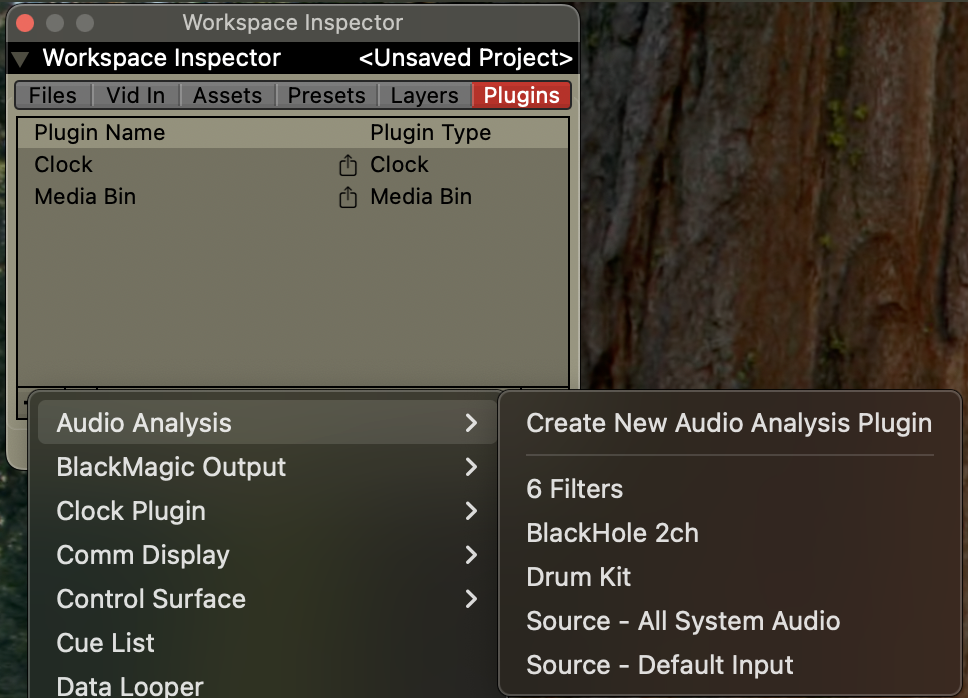
To load plugin templates:
- When adding a new plugin instance to your workspace, you can directly select a template to load for its initial settings.
- Right-click on an existing plugin and select a template from the "Load Plugin State from Template >" sub-menus.
To create a new template from an existing plugin:
- Right-click on the plugin in the list and choose the 'Create Plugin Template from Selected Plugin' option. This will be followed by a save dialog for naming the template.
From the Templates Manager
The Templates Manager window can be opened by choosing the "Manage Templates..." option from the Templates menu.
This panel makes it easy to find existing templates by search and by category, and also includes the ability to add a thumbnail and description as metadata for each template.
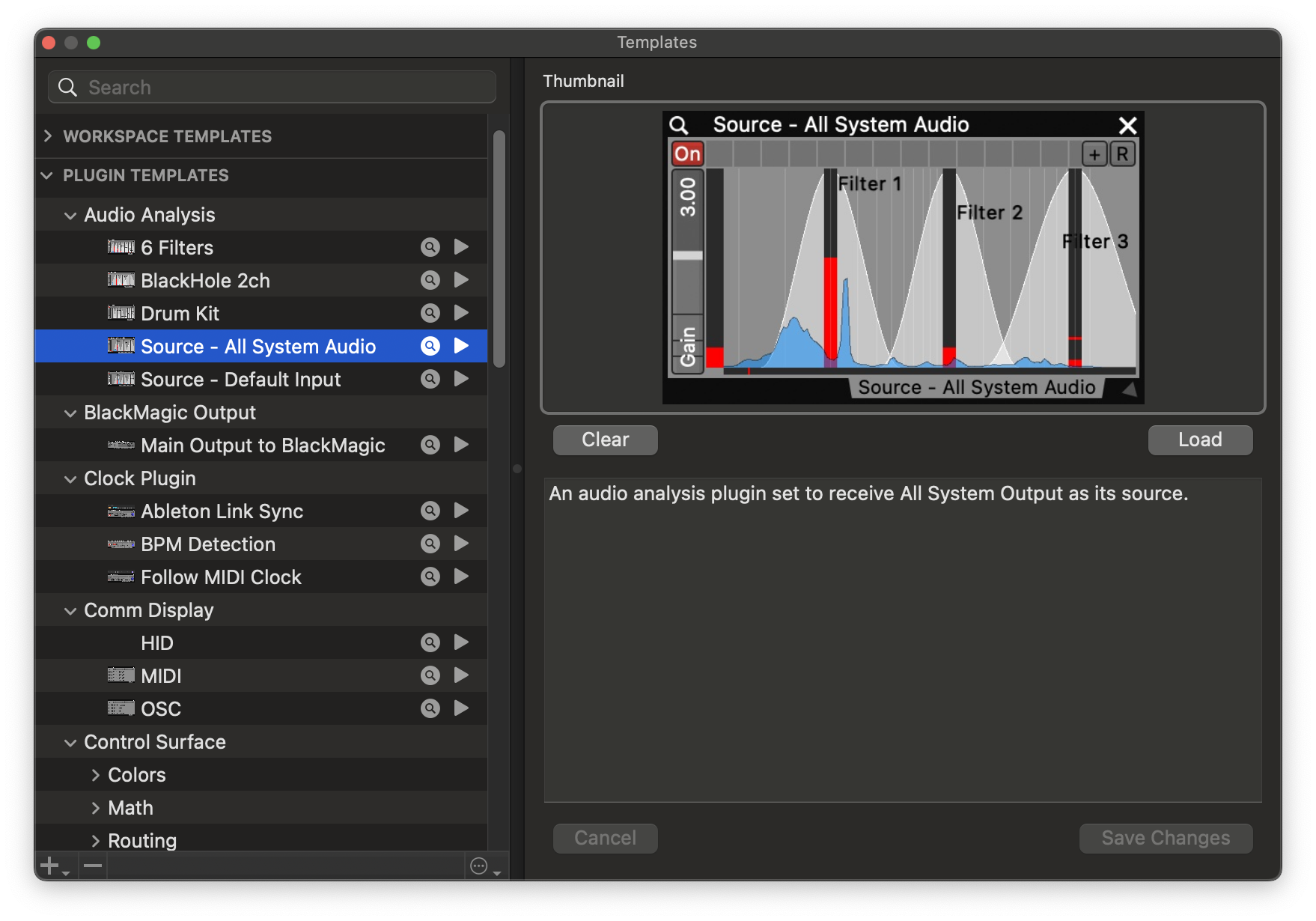
For each listed template:
- Adjust the name of the template in the list.
- Use the '▶️' button to create a new plugin from the template.
- Use the '🔍' button to reveal the file for the template in the Finder.
This panel can also be used to delete templates using the '-' button in the bottom bar.
From the Finder
The Plugin Templates files themselves are stored in the VDMX Assets folder. You can get to this directly by using the "Open Assets Folder in Finder" option from the Help menu.
Within this directory the 'Plugin Templates' folder contains all the Plugin Templates, each organized by plugin type.
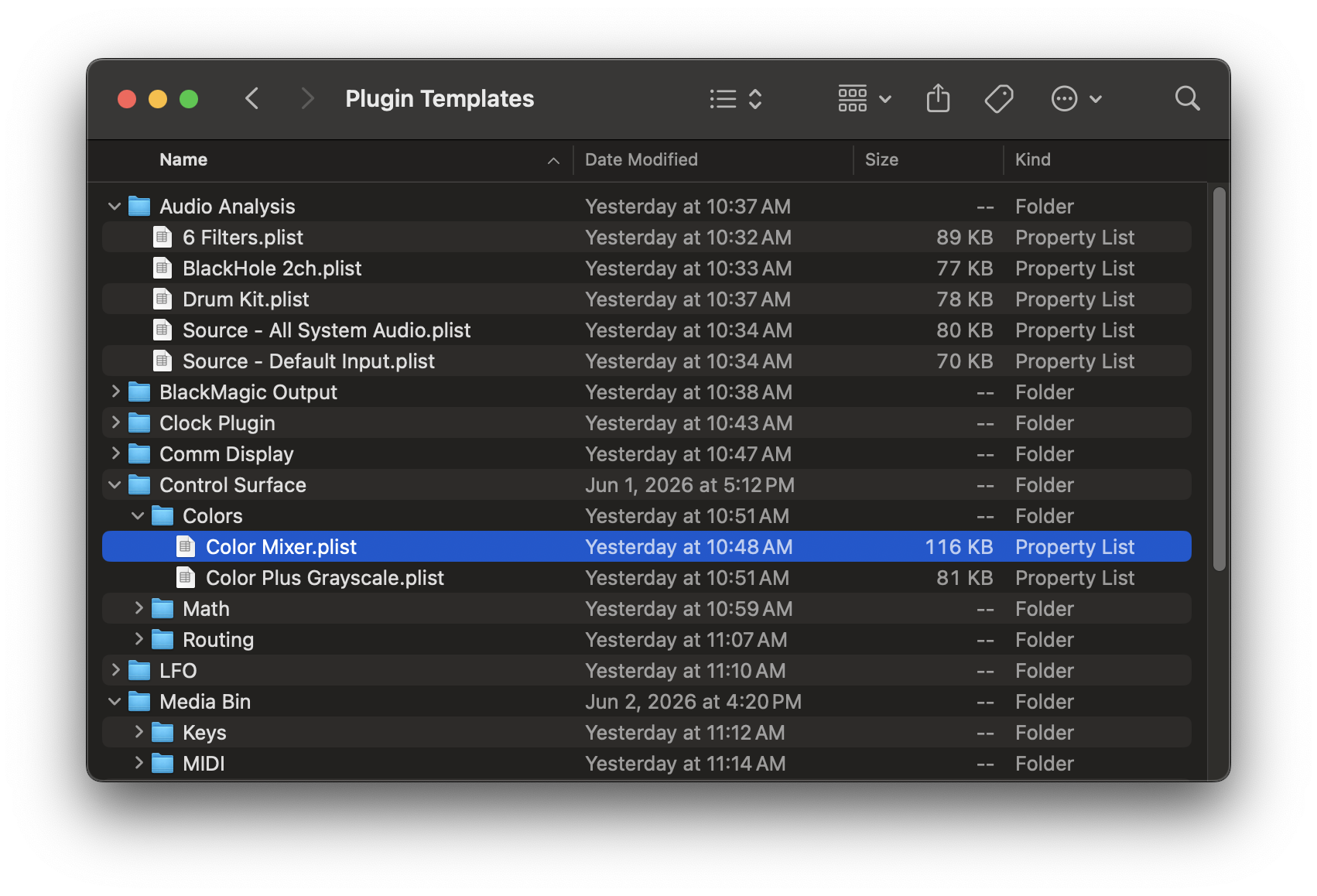
Within each plugin subfolder you can further organize your templates with additional folders. For example, with Media Bin templates we include 'MIDI', 'OSC', 'Keys', and 'Playback' subcategories as part of the standard install.
Individual template files can be copied, moved, duplicated, renamed, or deleted in the Finder, and the changes will be noted when you switch back to VDMX.